 Footnote
GETTING STARTED
Your first claim check.
A few steps from a sentence you are reading to an evidence panel you can explore.
1. Install the Chrome extension
Open the Footnote Trust Layer listing and add the extension to Chrome. Pin Footnote in the browser toolbar if you want one-click access. Chrome 116 or newer is required by this release.
2. Sign in once
Open Footnote and sign in using the available account options. The extension uses the protected browser session for its requests. After successful sign-in, you can close the website.
In version 0.5.10, the session renews during use and has a 180-day inactivity limit. It survives ordinary browser restarts. Signing out, clearing the site's cookies, changing browser profiles, or using a private browsing session can require another sign-in. If you began a check before signing in, Footnote can resume it in the unchanged original tab for up to ten minutes.
3. Highlight a factual sentence
Select a short passage that includes enough context. Right-click and choose Check with Footnote. Short text selections are sent as text without a screenshot.
You can also click the toolbar button to check the current page. The default shortcut is ⌘ Shift U on macOS or Ctrl Shift U elsewhere. Browser shortcut settings let you change it.
4. Follow the check
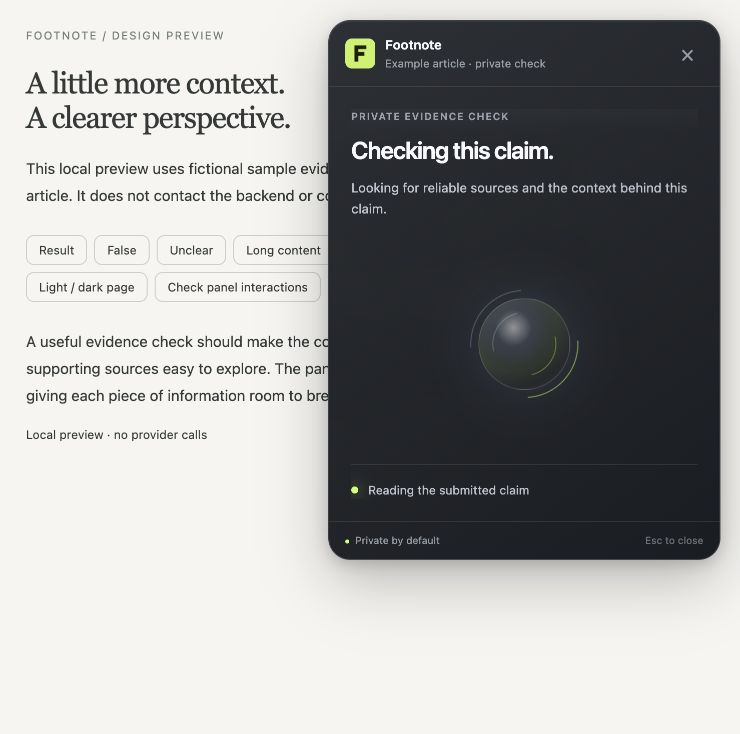
The panel stays on the page while Footnote reads the claim, searches sources, and checks source passages. The animation indicates activity; it is not a promised completion time.
Wait for the completed result. If a check cannot finish, the panel explains the available recovery action. Repeated clicks do not make the sources load faster.
5. Read the explanation and sources
Start with the verdict and explanation, then expand Claim checked to confirm the statement being assessed. Source titles open the underlying pages. Show passages expands available verified quotations without another check or extra credit.
The optional Dig deeper button explicitly starts an additional search and shows its cost. For a walkthrough, read Understanding your result.